


Sangoma is rolling out further changes to commercial module versioning, dependency handling, and security on FreePBX and PBXact. If your team uses Talk Mobile, the Desktop Client, or the Web Phone, here’s the plain-English version of what’s changing — and what to check before it catches you off guard.
Who this affects
This one’s for you if you’re running systems with users on any of our softphone clients:
- Sangoma Talk Mobile App
- Sangoma Desktop Client
- Sangoma Web Phone (browser-based)

The grace period is your buffer
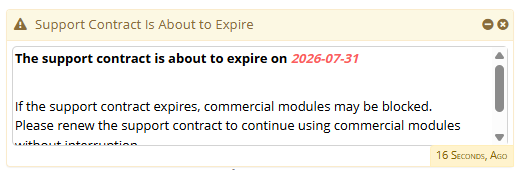
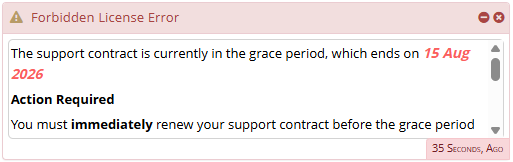
Once a commercial module license or maintenance term lapses, Sangoma doesn’t cut things off immediately — you get one month to renew before any restrictions kick in. Renew within that window, and nothing changes for your softphone clients.
What happens when the grace period ends
Once maintenance, licensing, or Peace Of Mind Packages (POMPs) lapse and the grace period runs out, here’s how each client behaves:
| Platform | Client | Impact |
| FreePBX | Talk Mobile App | No change — already UI blocked / no calls via PBX |
| FreePBX | Desktop Client | Limited to emergency route calls |
| FreePBX | Web Phone | Limited to emergency route calls |
| PBXact | Talk Mobile App | UI blocked / no calls allowed via PBX |
| PBXact | Desktop Client | Limited to emergency route calls |
| PBXact | Web Phone | Limited to emergency route calls |
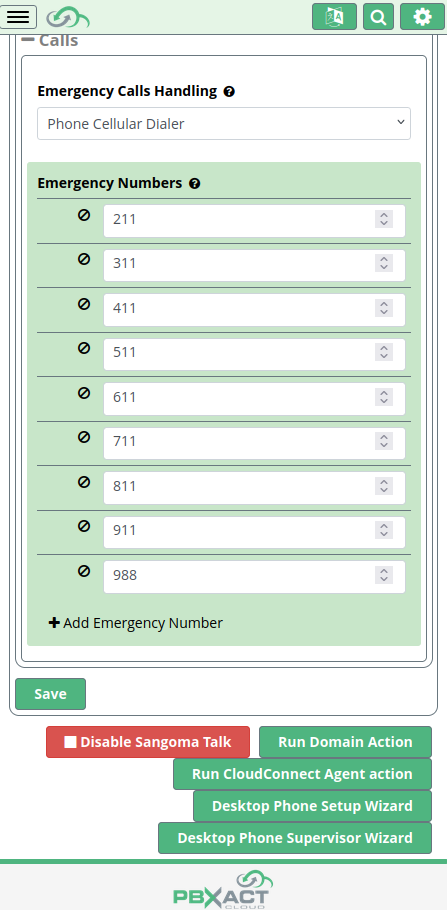
Additionally, the Talk Mobile App may perform differently based on your configuration in the Sangoma Connect module in the PBX GUI. For example, if you’ve previously enabled Emergency Calls Handling to go out the Phone Cellular Dialer — a highly recommended setting in most remote user environments — then any Sangoma Talk Mobile App client which downloaded that configuration before the license expired (or before the account was removed in the PBX GUI) will still be able to make calls to previously-configured emergency or other special numbers that you defined (if any) by handing off the call from the app to your smartphone’s built-in native dialer application.
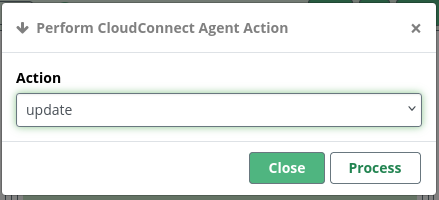
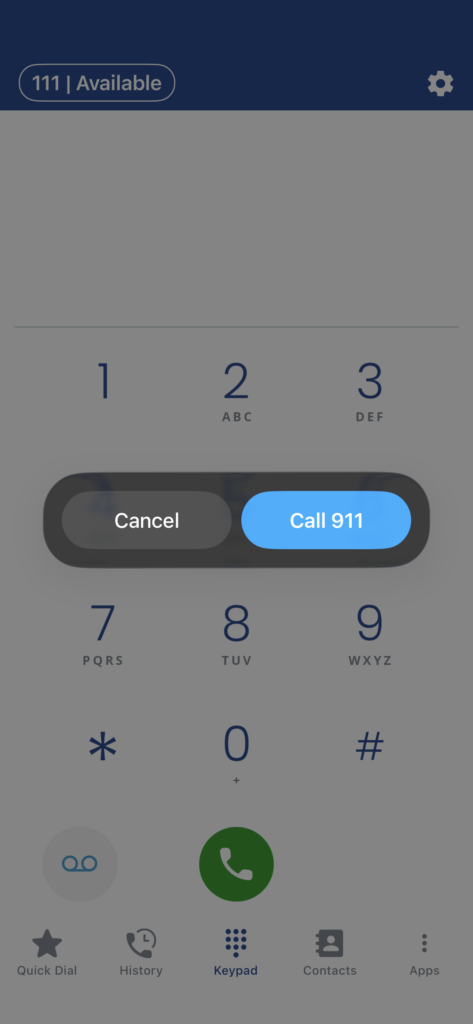
After following those steps, if you still aren’t seeing that kind of pop-up when dialing an emergency/special number from the Sangoma Talk app, then try clicking Apply Config in the PBX GUI and closing then re-opening the app. Note that all of this must be done before your license/POMPs expire — after that, the apps won’t get any new configuration and should be uninstalled from client devices.
PSA: Do NOT place unauthorized test calls directly to 911!
Don’t get caught off guard
Updating your modules automatically brings this new behavior along with it — it’s not a separate toggle you’ll see. Sticking with your current, older software for now means you won’t see the change, though you’ll also be missing out on the security and dependency fixes that come with updating. No wrong answer here, just good to know what you’re trading off either way.
How to check your status
Takes about five minutes. Pick your preferred method and verify your softphone license expiry date:
- PBX GUI: Admin → Module Admin
- Command line: fwconsole sa update
- portal.sangoma.com → Deployments tab — shows every registered system and is the fastest place to renew in bulk
Check before you upgrade
Confirm your maintenance renewals and licensing are current first — don’t just hit upgrade and hope. If a system upgrades modules while licensing has lapsed, softphone users may lose calling functionality with no separate warning at the moment it happens.
Of course, we recommend renewals as the happy path to secure, supported commercial systems. ♥ However, Administrators who are not renewing licenses and/or POMPs should not enable automatic updates of any PBX modules, and instead such situations should be handled manually one-by-one to prevent version mismatches, dependency conflicts and/or disablement of GUI control/reporting for the module(s) in question.
Get more out of your softphones
While you’re renewing, take it a step further: watch last week’s FreePBX Softphones for Smarter Call Center Operations webinar right here on our blog (or if your browser cookie setting is blocking the video, click the link instead.) We walked through the Desktop App and Sangoma Talk, plus call monitoring, queue control, real-time dashboards, security updates, and Scribe’s AI-powered call summaries with its new vCon export feature (coming soon!)
Watch the video on YouTube!
Don’t panic!
A few minutes checking your renewal status now means your team keeps making calls without interruption — and you get the security and dependency improvements as a bonus. Take care of it on your own timeline, and you’ll be in good shape when the grace period wraps up.
Related documentation on our softphones, module expiry and emergency outbound route calling is available on the Sangoma knowledge base wiki. You can also leverage our AI RAG tool that was discussed in the webinar to quickly access dynamic summaries and jump to the relevant sections of the Sangoma KB for more detailed reading: https://sangoma.help
Have questions or need help? Don’t hesitate to give us a shout.